This could be a hardware problem on your computer. Before rushing to your technician it might be repairable by yourself just a matter of minutes reading the different beep codes and troubleshooting.First you must determine the bios your computer using. Then after understanding the beep code your computer gives you now you can start opening the system unit side cover depending of what it should be done.

Computer won't start - nothing displays on the screen.
- Make sure that both the computer and monitor are securely plugged in to an electrical outlet. If you are using a power-strip, be sure it, too, is plugged in and switched on.
- If you're using a laptop, make sure the battery is securely attached and has enough charge.
- Make sure that the monitor is securely plugged into the computer, and into the correct port on the computer.
- Make sure the brightness and contrast on the monitor are not set too low.
- Make sure the monitor input is set to the correct type (analog vs. digital, depending on the cable you are using)
- Make sure the monitor doesn't smell like burnt plastic.
- Does the computer make a harsh beeping sound instead? Then determine which bios beep code to be used depending of what bios your pc has.
- Do the keyboard, hard drives, CD-ROM drive, and floppy drives seem to start?
BLUE SCREENS
 |
| "BLUESCREEN OF DEATH" |
Strange noises and vibration
- This is almost totally a hardware issue. You computer is made up of thousands of parts. Its not unheard of that one of them can become unhinged. Overheating can cause expansion of wires and melt some sensitive. High pitch noises such as squealing or whining sounds can be cause electronic components. Whatever the reason, you conduct a small investigation. Remove the case and run the computer to discover the origin of the computer problem. If its not a simple matter such as a loose wire or fan issue, it may be time to call a computer technician.
Unusual change on your default browser,search engine and home page
- This is also known as "high-jacking". Spyware has been installed on your computer via social networking or from email link. This action has allowed spyware to install a java script into your web browser. The spyware then sends a message to your browser to change your user settings. For example change your home page to another web page.
To fix this problem try scanning your computer with antivirus or antispyware program with latest update installed. If it doesn't solve your problem uninstall your default browser and install new version if available and install it again. Still having the problem? Call your computer technician to solve the problem, it needs some registry fixes.
NOTE* A SLIGHT CHANGE OF YOUR REGISTRY SETTING MIGHT LEAD TO A MORE SERIOUS PROBLEM.
Computer performance or startup slowed?
SCAN YOUR PC WITH ANTI-VIRUS AND ANTI-SPYWARE PROGRAMS
RUN YOUR DISK CLEANUP TOOL
DEFRAGMENTATION
SERVICES AND APPLICATION
- before scanning your pc with installed anti-virus or anti-spyware programs be sure it is up to date with latest available updates installed or else some new virus and spywares present in your pc will not be removed. To be more effective you can pull out your hard drive and scan it from another virus and spyware free pc with up to date anti-virus updates installed.
RUN YOUR DISK CLEANUP TOOL
- try checking your hard disk free space if there is not enough space left it might be the cause of your slow pc performance. Disk Cleanup is a tool used to free space by removing temporary internet files, downloaded program files, by emptying the Recycle Bin, removing temporary Windows files, removing optional Windows components that you are not using and removing installed programs that you no longer use. For more info click here.
- check your installed programs in your pc by clicking on "Start" then "Control Panel" thin click on "Add or Remove Programs" a list of installed programs appear then choose which program your not using any more and remove them. Removing installed programs frees space on your hard drive. The more space the faster the pc.
DEFRAGMENTATION
- Disk fragmentation slows the overall performance of your system. When files are fragmented, the computer must search the hard disk when the file is opened to piece it back together. The response time can be significantly longer.Disk Defragmenter is a Windows utility that consolidates fragmented files and folders on your computer's hard disk so that each occupies a single space on the disk. With your files stored neatly end-to-end, without fragmentation, reading and writing to the disk speeds up.
Run Disk Defragmenter at regular intervals—monthly is optimal—there are other times you should run it too such as when you add a large number of files, your free disk space totals 15 percent or less and you install new programs or a new version of Windows.
DETECT AND REPAIR DISK ERRORS
DETECT AND REPAIR DISK ERRORS
- In addition to running Disk Cleanup and Disk Defragmenter to optimize the performance of your computer, you can check the integrity of the files stored on your hard disk by running the Error Checking utility.As you use your hard drive, it can develop bad sectors. Bad sectors slow down hard disk performance and sometimes make data writing (such as file saving) difficult, or even impossible. The Error Checking utility scans the hard drive for bad sectors, and scans for file system errors to see whether certain files or folders are misplaced.If you use your computer daily, you should run this utility once a week to help prevent data loss.
- be sure latest available updates are installed in your pc. To check available update click "Start" then click "All Programs" at the top part click "Windows Update". A Microsoft web page will open then click on "Express" recommended.
- If you are a competent user than you can reduce the number of services and applications that start up when Windows initiates. Applications, more so than services will give you a slow startup. 'Start' and then click on 'Run' and type in MSCONFIG and select the 'Startup' tab (applications only). Disable what you will. These applications are still available once you are logged in - they have not been deleted.For SERVICES ---- follow the same procedure but select the 'services' tab instead.
DO NOT uncheck the 'Hide All Microsoft Services' box. You may render your computer useless if you disable any Microsoft Services. Also DO NOT disable any virus services unless you have 3rd party antivirus software.
ADJUST VISUAL EFFECTS
2.Click System.
3.Find the Advanced tab and Click
4.Under Performance, Click Settings
5.Under Visuals Effects, you may choose from a list of options such as Adjust for best performance or custom. If you choose Adjust for best performance all the features will be unchecked.
ADJUST VISUAL EFFECTS
- One of the best computer speed tips is to cut down on all the processes that burden your CPU. Windows has a lovely interface. Fading icons, drop down shadows, animate windows are just a few of the fancy features. However, these features are completely unnecessary to your computer performance. All these features bog down your CPU. So, if you would like to increase your Windows speed eliminate some of these options.
2.Click System.
3.Find the Advanced tab and Click
4.Under Performance, Click Settings
5.Under Visuals Effects, you may choose from a list of options such as Adjust for best performance or custom. If you choose Adjust for best performance all the features will be unchecked.
I recommend choosing the Adjust for best performance option. However if you feel Windows is missing some flare, choose Custom. Then you can individually add whatever features you like to jazz up your Windows appearance.
Problem solved? If not please contact your respective computer technician for more help it might need some expertise.
Problem solved? If not please contact your respective computer technician for more help it might need some expertise.
PGA
 |
| A PGA socket on a motherboard |
 |
| A PGA processor |
A pin grid array, often abbreviated PGA, refers to the arrangement of pins on the integrated circuit packaging. In a PGA, the pins are arranged in a square array that may or may not cover the bottom of the package. The pins are commonly spaced 2.54 mm (0.1") apart. PGAs are often mounted on printed circuit boards via two methods, through hole or by using a socket. PGAs are primarily used in applications that require more pins than what older packages such as the dual in-line package (DIP) provide.
PGA VARIANTS
- PPGA: Plastic pin grid array - used by Intel for late model Mendocino core Celeron processors based on Socket 370. Some pre-Socket 8 processors also used a similar form factor, although they were not officially referred to as PPGA.
- FCPGA: flip-chip pin grid array - introduced by Intel with the Coppermine core Pentium III and Celeron processors based on Socket 370, later used for Socket 478-based Pentium 4 and Celeron processors, and still used today for mobile Intel processors.
- SPGA: Staggered pin grid array - used by processors based on Socket 5 and Socket 7. Socket 8 used a partial SPGA layout on half the processor.
- CPGA: Ceramic pin grid array - used by AMD for Athlon and Duron processors based on Socket A, as well as some AMD processors based on Socket AM2 and Socket AM2+. While similar form factors have been used by other manufacturers, they are not officially referred to as CPGA.
- OPGA: Organic pin grid array - originally introduced for the AMD Athlon XP processors based on Socket A, also used for AMD processors using Socket 754, Socket 939, Socket 940, Socket AM2, and Socket AM2+.
LGA
The land grid array (LGA) is a type of surface-mount packaging for ICs that is notable for having the pins on the socket rather than the IC. An LGA can be electrically connected to a PCB either by the use of a socket or by soldering directly to the PCB.
USE IN MICROPROCESSORS
The LGA is used as a physical interface for microprocessors of the Intel Pentium 4 (Prescott), Intel Xeon, Intel Core 2, Intel Core (Bloomfield and Lynnfield) and AMD Opteron families. Unlike the pin grid array (PGA) interface found on most AMD and older Intel processors, there are no pins on the chip; in place of the pins are pads of bare gold-plated copper that touch pins on the motherboard.
While LGA sockets have been in use as early as 1996 by the MIPS R10000 and HP PA-8000 processors, the interface did not gain widespread use until Intel introduced their LGA platform starting with the 5x0 and 6x0 sequence Pentium 4 (Prescott) in 2004. All Pentium D and Core 2 desktop processors currently use an LGA socket. As of Q1 2006 Intel switched the Xeon server platform to LGA starting with the 5000-series models. AMD introduced their server LGA platform starting with the 2000-series Opteron in Q2 2006. AMD offers the Athlon 64 FX-74 on socket 1207FX through ASUS's L1N64-SLI WS motherboard as the only desktop LGA solution in the desktop market from AMD currently.
The most common Intel desktop LGA socket is dubbed LGA 775 (Socket T) while the server variant is dubbed LGA 771 (Socket J). However, the new Intel Core i7 and i7 Extreme families uses the LGA 1366 (Socket B) socket. As of September 2009, the new Core i5 700 series and the Core i7 800 series - codenamed Lynnfield - use LGA 1156 (Socket H) Intel supposedly decided to switch to an LGA socket because it provides a larger contact point, allowing, for example, higher clock frequencies. The LGA setup provides higher pin densities, allowing more power contacts and thus a more stable power supply to the chip. LGA packaging also has a tertiary benefit of placing pins onto the motherboard; if a pin breaks, the motherboard is often cheaper to replace than the CPU chip (as compared to a PGA chip/socket setup).
The AMD server LGA socket is designated Socket F (LGA 1207) Similar to Intel, AMD decided to use an LGA socket because it allows higher pin densities. The required size of a 1207-pin PGA would simply be too large and would consume too much space on motherboards.
 |
| SOCKET 775 ON A MOTHERBOARD |
 |
| LGA 775 PROCESSOR |
PROCESSORS WITH LGA ARE SOCKET F (LGA 1207), SOCKET C32 (LGA 1207) AND SOCKET G34 (LGA 1974)
INTEL PROCESSOR WITH LGA ARE LGA 775 (SOCKET T), LGA 771 (SOCKET J), LGA 1366 (SOCKET B), LGA 1156 (SOCKET H), LGA 1155 (SOCKET H2) AND LGA 2011 (SOCKET R)
INTEL processors
Intel Corporation (NASDAQ: INTC; SEHK: 4335; Euronext: INCO) is an American global technology company and the world's largest semiconductor chip maker, based on revenue.[4] It is the inventor of the x86 series of microprocessors, the processors found in most personal computers. Intel was founded on July 18, 1968, as Integrated Electronics Corporation (though a common misconception is that "Intel" is from the word intelligence) and is based in Santa Clara, California, USA. Intel also makes motherboard chipsets, network interface controllers and integrated circuits, flash memory, graphic chips, embedded processors and other devices related to communications and computing. Founded by semiconductor pioneers Robert Noyce and Gordon Moore and widely associated with the executive leadership and vision of Andrew Grove, Intel combines advanced chip design capability with a leading-edge manufacturing capability. Originally known primarily to engineers and technologists, Intel's "Intel Inside" advertising campaign of the 1990s made it and its Pentium processor household names.
Intel was an early developer of SRAM and DRAM memory chips, and this represented the majority of its business until 1981. While Intel created the first commercial microprocessor chip in 1971, it was not until the success of the personal computer (PC) that this became their primary business. During the 1990s, Intel invested heavily in new microprocessor designs fostering the rapid growth of the computer industry. During this period Intel became the dominant supplier of microprocessors for PCs, and was known for aggressive and sometimes controversial tactics in defense of its market position, particularly against AMD, as well as a struggle with Microsoft for control over the direction of the PC industry.[5][6] The 2010 rankings of the world's 100 most powerful brands published by Millward Brown Optimor showed the company's brand value at number 48.[7]
This is my best way of introducing INTEL processors for more info just make some google or click here.You can visit Intel processors.
Intel was an early developer of SRAM and DRAM memory chips, and this represented the majority of its business until 1981. While Intel created the first commercial microprocessor chip in 1971, it was not until the success of the personal computer (PC) that this became their primary business. During the 1990s, Intel invested heavily in new microprocessor designs fostering the rapid growth of the computer industry. During this period Intel became the dominant supplier of microprocessors for PCs, and was known for aggressive and sometimes controversial tactics in defense of its market position, particularly against AMD, as well as a struggle with Microsoft for control over the direction of the PC industry.[5][6] The 2010 rankings of the world's 100 most powerful brands published by Millward Brown Optimor showed the company's brand value at number 48.[7]
COMMON INTEL PROCESSORS NOW A DAYS
| |
| INTEL SOCKET 478 PROCESSOR (PGA) |
INTEL PENTIUM 4, CELERON, PENTIUM 4 EE, PENTIUM 4 M PROCESSORS
- year inroduced 2000
- buss speed 400 - 800 MT/s (100 - 200 MHz)
- 478 pins
- processor dimension 1.38 × 1.38 inches
- pin pitch 1.27 mm
- package (PGA)
|
| INTEL (LGA pinless) 775 PROCESSOR |
INTEL PENTIUM 4, PENTIUM D, CELERON, CELERON D, PENTIUM XE, CORE2DUO, CORE2QUAD AND INTEL XEON PROCESSORS
- year introduced 2004
- buzz speed 1600 MHz
- number of contacts 775
- processor dimension 1.47 × 1.47 inches (37.5mm)
- contact pitch 1.09 mm x 1.17 mm
- package (LGA)
 |
| INTEL CORE i7 PROCESSOR 900 SERIES |
INTEL CORE i7 900 SERIES PROCESSORS, INTEL XEON 3500,3600,5500,5600 SERIES AND INTEL CELERON P1053 SERIES PROCESSORS
- year introduced 2008
- buzz speed 4.8 - 6.4 GT/s
- number of contacts 1366
- processor dimension 1.77 × 1.67 inches
- package (LGA)
 | |
| INTEL CORE i5 PROCESSOR 700 SERIES |
INTEL CORE i7 800 SERIES, INTEL CORE i5 700 AND 600 SERIES, INTEL CORE i3 500 SERIES, INTEL XEON X3400 AND L3400 SERIES, INTEL PENTIUM G6000 SERIES AND INTEL CELERON G1000 SERIES PROCESSORS
- year introduced 2009
- buzz speed 2.5 GT/s
- number of contact 1156
- processor dimension 37.5 × 37.5 mm
- package (LGA)
This is my best way of introducing INTEL processors for more info just make some google or click here.You can visit Intel processors.
AMD processors
Advanced Micro Devices, Inc. (AMD) (NYSE: AMD) is an American multinational semiconductor company based in Sunnyvale, California, that develops computer processors and related technologies for commercial and consumer markets. Its main products include microprocessors, motherboard chipsets, embedded processors and graphics processors for servers, workstations and personal computers, and processor technologies for handheld devices, digital television, automobiles, game consoles, and other embedded systems applications.
AMD is the second-largest global supplier of microprocessors based on the x86 architecture and also one of the largest supplier of graphics processing units. It also owns 8.6% of Spansion, a supplier of non-volatile flash memory.[2] In 2009, AMD ranked eighth among semiconductor manufacturers in terms of revenue.[3]
AMD is the second-largest global supplier of microprocessors based on the x86 architecture and also one of the largest supplier of graphics processing units. It also owns 8.6% of Spansion, a supplier of non-volatile flash memory.[2] In 2009, AMD ranked eighth among semiconductor manufacturers in terms of revenue.[3]
COMMON AMD PROCESSORS NOW A DAYS.
 |
| AMD SEMPRON (SOCKET 754) |
AMD ATHLON 64, AMD SEMPRON AND AMD TURION 64
- year of introduction 2003
- buzz speed 200-800 MHz
- 754 pins
- pin pitch 1.27 mm
- PGA (package)
 |
| AMD ATHLON 64 X2 (SOCKET 939) |
AMD ATHLON 64, FX ATHLON 64,ATHLON 64 FX, ATHLON 64 X2 AND AMD OPTERON
- year of introduction 2004
- buzz speed 200-1000 MHz
- 939 pins
- pin pitch 1.27 mm
- PGA (package)
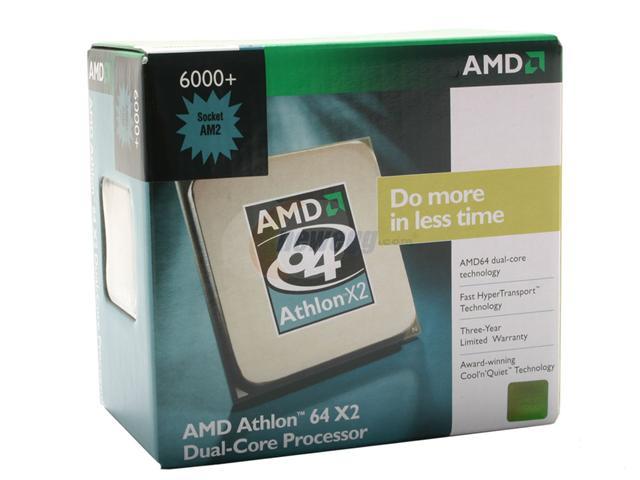 | |
| AMD ATHLON 64 X2 6000+ (SOCKET AM2) |
AMD ATHLON 64 X2 AND AMD ATHLON 64 REPLACES SOCKET 754 & 939
- year of introduction 2006
- buzz speed 200 - 1000 MHz
- 940 pins
- pin pitch 1.27 mm
- PGA (package)
 | |
| AMD PHENOM (SOCKET AM2+) |
AMD PHENOM, AMD ATHLON X2 AND AMD ATHLON 64 REPLACES SOCKET AM2
- year of introduction 2007
- buzz speed 200 - 2600 MHz
- 940 pins
- pin pitch 1.27 mm
- PGA (package)
 |
| AMD PHENOM II X4 (SOCKET AM3) |
AMD PHENOM II, AMD ATHLON II AND AMD SEMPRON REPLACES SOCKET AM2+
- year of introduction 2009
- buzz speed 200 - 3200 MHz
- 941 pins
- pin pitch 1.27 mm
- PGA (package)
 |
| AMD OPTERON 6000(SOCKET G34)/4000 SERIES(SOCKET C32) SERVER PROCESSORS |
- year of introduction 2010
- buzz speed 200 - 3200 MHz
- 1207 pins
- LGA (package)
- year of introduction 2010
- buzz speed 200 - 3200 MHz
- 1974 pins
- LGA (package)
What is a Video Card?
A video card, video adapter, graphics accelerator card, display adapter, or graphics card is an expansion card whose function is to generate output images to a display. Many video cards offer added functions, such as accelerated rendering of 3D scenes and 2D graphics, video capture, TV-tuner adapter, MPEG-2/MPEG-4 decoding, FireWire, light pen, TV output, or the ability to connect multiple monitors (multi-monitor). Other modern high performance video cards are used for more graphically demanding purposes, such as PC games.
Video hardware can be integrated on the motherboard, often occurring with early machines. In this configuration it is sometimes referred to as a video controller or graphics controller. Modern low-end to mid-range motherboards often include a graphics chipset developed by the developer of the northbridge (i.e. an nForce chipset with nVidia graphics or an Intel chipset with Intel graphics) on the motherboard. This graphics chip usually has a small quantity of embedded memory and takes some of the system's main RAM, reducing the total RAM available. This is usually called integrated graphics or on-board graphics, and is low-performance and undesirable for those wishing to run 3D applications. A dedicated Graphics Card on the other hand has its own RAM and Processor specifically for processing video images, and thus offloads this work from the CPU and system RAM. Almost all of these motherboards allow the disabling of the integrated graphics chip in BIOS, and have an AGP, PCI, or PCI Express slot for adding a higher-performance graphics card in place of the integrated graphics. Despite the performance limitations, around 95% of new computers are sold with integrated graphics processors, leaving it for the individual user to decide whether to install a dedicated Graphics card.
 | |
| Mounting a pci-express video card the blue slot is a pci-e slot available on a motherboard | . |
 |
| Motherboard with a AGP slot avialable(color brown).Usually found on old model motherboards. |
 |
| AGP video card w/ DVI |
 |
| PCI-Express Video Card w/ DVI |
What is a CPU?
The CPU is the brains of the computer. Sometimes referred to simply as the central processor, but more commonly called processor, the CPU is where most calculations take place. In terms of computing power, the CPU is the most important element of a computer system.
On large machines, CPUs require one or more printed circuit boards. On personal computers and small workstations, the CPU is housed in a single chip called a microprocessor. Since the 1970's the microprocessor class of CPUs has almost completely overtaken all other CPU implementations.
The CPU itself is an internal component of the computer. Modern CPUs are small and square and contain multiple metallic connectors or pins on the underside. The CPU is inserted directly into a CPU socket, pin side down, on the motherboard. Each motherboard will support only a specific type or range of CPU so you must check the motherboard manufacturer's specifications before attempting to replace or upgrade a CPU. Modern CPUs also have an attached heat sink and small fan that go directly on top of the CPU to help dissipate heat.
Two typical components of a CPU are the following:
The arithmetic logic unit (ALU), which performs arithmetic and logical operations.
The control unit (CU), which extracts instructions from memory and decodes and executes them, calling on the ALU when necessary.
There two common cpu's found on computer stores nowadays the intel & AMD processors.
On large machines, CPUs require one or more printed circuit boards. On personal computers and small workstations, the CPU is housed in a single chip called a microprocessor. Since the 1970's the microprocessor class of CPUs has almost completely overtaken all other CPU implementations.
The CPU itself is an internal component of the computer. Modern CPUs are small and square and contain multiple metallic connectors or pins on the underside. The CPU is inserted directly into a CPU socket, pin side down, on the motherboard. Each motherboard will support only a specific type or range of CPU so you must check the motherboard manufacturer's specifications before attempting to replace or upgrade a CPU. Modern CPUs also have an attached heat sink and small fan that go directly on top of the CPU to help dissipate heat.
Two typical components of a CPU are the following:
The arithmetic logic unit (ALU), which performs arithmetic and logical operations.
The control unit (CU), which extracts instructions from memory and decodes and executes them, calling on the ALU when necessary.
There two common cpu's found on computer stores nowadays the intel & AMD processors.


What is POST?

POST stands for Power-On-Self-Test. The computer power-on self-test tests the computer to make sure it meets the necessary system requirements and that all hardware is working properly before starting the remainder of the boot process. If the computer passes the POST, the computer may have a single beep (with some computer BIOS suppliers it may beep twice) as the computer starts and the computer will continue to start normally.
 | ||
| First stage of a typical POST operation. |
Bios Manufacturer : American Megatrends Inc.
Motherboard : Asus P5KPL
Bios version : 0603
Bios version : 0603
CPU : Intel Pentium Dual CPU E2180 @ 2.00 Ghz
 | |
| The second stage of a POST |
What is a Motherboard?
The motherboard is the most essential component in a personal computer . it is the piece of hardware which contains the computer's micro-processing chip and everything attached to it is vital to making the computer run.
 |
| DIFFERENT COMPONENTS OF A MOTHERBOARD |
- Power Connector
- Memory Slot
- IDE Connector
- Northbridge
- Southbridge
- AGP Slot/PCIE Slot
- PCI Slot
- CMOS (backup battery)
- CPU Socket
- CPU Fan& Heatsink Mounting Points
- Connectors for Intergrated Peripherals
AmiBIOS Beep Code Troubleshooting
1 Beep
A single beep from an AMI based BIOS means there has been a memory refresh timer error. The solution is often to replace the RAM in the computer.
2 Beeps
Two beeps means there has been a parity error in base memory. This is an issue with the first 64KB block of memory in your RAM. The solution is usually to replace the memory.
3 Beeps
Three beeps means there has been a base memory read/write test error. Replacing the RAM usually solves this AMI beep code.
4 Beeps
Four beeps means that the motherboard timer is not working properly. A hardware failure with an expansion card or the motherboard itself could be the cause of this beep code.
5 Beeps
Five beeps means there has been a processor error. A damaged expansion card, the CPU, or the motherboard could be prompting this AMI beep code.
6 Beeps
Six beeps means that there has been an 8042 Gate A20 test error. This beep code is usually caused by an expansion card that has failed or the motherboard that is no longer working.
7 Beeps
Seven beeps indicates a general exception error. This AMI beep code could be caused by an expansion card problem, a motherboard hardware issue, or a damaged CPU. Replacing the faulty hardware usually fixes the cause of this beep code.
8 Beeps
Eight beeps means that there has been an error with the display memory. This beep code is usually caused by a faulty video card. Replacing the video card usually clears this up.
9 Beeps
Nine beeps means that there has been an AMIBIOS ROM checksum error. Literally, this would indicate an issue with the BIOS chip on the motherboard. However, since replacing a BIOS chip is sometimes impossible, this AMI BIOS issue is usually corrected by replacing the motherboard.
10 Beeps
Ten beeps means that there has been a CMOS shutdown register read/write error. This beep code is usually caused by a hardware issue with the AMI BIOS chip. A motherboard replacement will usually solve this problem, although it could be caused by a damaged expansion card in rare situations.
11 Beeps
Eleven beeps means that the cache memory test has failed. Some piece of failing hardware is usually to blame for this AMI BIOS beep code.
Not Using an AMI BIOS (AMIBIOS) or Not Sure?
If you're not using an AMI based BIOS then the troubleshooting guides above won't help. To see troubleshooting information for other types of BIOS systems or to figure out what kind of BIOS you have, see my How to Troubleshoot Beep Codes guide.
PhoenixBIOS Beep Codes Troubleshooting
1 Beep
1 Continuous Beep
1 Long Beep, 2 Short Beeps
1-1-1-1 Beep Code Pattern
Technically, a 1-1-1-1 beep code pattern doesn't exist but I've seen it and many readers have too. Most often, it's a problem with the system memory. This Phoenix BIOS issue is usually corrected by replacing the RAM.
1-2-2-3 Beep Code Pattern
1-3-1-1 Beep Code Pattern
1-3-1-3 Beep Code Pattern
1-3-4-1 Beep Code Pattern
1-3-4-3 Beep Code Pattern
1-4-1-1 Beep Code Pattern
2-1-2-3 Beep Code Pattern
2-2-3-1 Beep Code Pattern
Not Using a Phoenix BIOS (PhoenixBIOS) or Not Sure?
If you're not using a Phoneix based BIOS then the troubleshooting guides above won't help. To see troubleshooting information for other types of BIOS systems or to figure out what kind of BIOS you have, see my
A single beep from a Phoenix based BIOS is actually an "all systems clear" notification. Technically, it's an indication that the Power On Self Test is complete. No troubleshooting necessary!
1 Continuous Beep
One continuous beep isn't an officially listed Phoenix beep code but I know of several instances of this occurring. In at least one case, the solution was to reseat the CPU.
1 Long Beep, 2 Short Beeps
One long beep followed by two short beeps indicates that there has been a checksum error. This means that there is some kind of motherboard issue. Replacing the motherboard should fix this problem.
1-1-1-1 Beep Code Pattern
Technically, a 1-1-1-1 beep code pattern doesn't exist but I've seen it and many readers have too. Most often, it's a problem with the system memory. This Phoenix BIOS issue is usually corrected by replacing the RAM.
1-2-2-3 Beep Code Pattern
A 1-2-2-3 beep code pattern means that there has been a BIOS ROM checksum error. Literally, this would indicate an issue with the BIOS chip on the motherboard. Since replacing a BIOS chip is often not possible, this Phoenix BIOS issue is usually corrected by replacing the entire motherboard.
1-3-1-1 Beep Code Pattern
A 1-3-1-1 beep code pattern on a PhoenixBIOS system means that there has been an issue while testing the DRAM refresh. This could be a problem with the
system memory, an expansion card, or the motherboard.
1-3-1-3 Beep Code Pattern
A 1-3-1-3 beep code pattern means that the 8742 keyboard controller test has failed. This usually means that there is a problem with the currently connected keyboard but it could also indicate a motherboard issue.
1-3-4-1 Beep Code Pattern
A 1-3-1-1 beep code pattern on a PhoenixBIOS system means that there is some kind of issue with the RAM. Replacing the system memory usually fixes this problem.
1-3-4-3 Beep Code Pattern
A 1-3-1-1 beep code pattern indicates some kind of issue with the memory. Replacing the RAM is the usual recommendation for solving this problem.
1-4-1-1 Beep Code Pattern
A 1-4-1-1 beep code pattern on a PhoenixBIOS system means that there is an issue with the system memory. Replacing the RAM usually fixes this problem.
2-1-2-3 Beep Code Pattern
A 2-1-2-3 beep code pattern means that there has been a BIOS ROM error, meaning an issue with the BIOS chip on the motherboard. This Phoenix BIOS issue is usually corrected by replacing the motherboard.
2-2-3-1 Beep Code Pattern
A 2-2-3-1 beep code pattern on a PhoenixBIOS system means that there has been an issue while testing hardware related to IRQs. This could be a hardware or misconfiguration problem with an expansion card or some kind of motherboard failure.
Other Phoenix Beep Codes Many other PhoenixBIOS beep codes exist but are very uncommon. If you happen to come across a Phoenix beep code that I don't have listed above, let me know and I'll add the beep code and associated troubleshooting information to the list above.
Not Using a Phoenix BIOS (PhoenixBIOS) or Not Sure?
If you're not using a Phoneix based BIOS then the troubleshooting guides above won't help. To see troubleshooting information for other types of BIOS systems or to figure out what kind of BIOS you have, see my
How to Troubleshoot Beep Codes guide.
AwardBIOS Beep Codes Troubleshooting
1 Short Beep
1 Long Beep, 2 Short Beeps
1 Long Beep, 3 Short Beeps
1 High Pitched Beep, 1 Low Pitched Beep (Repeating)
1 High Pitched Beep (Repeating)
A single, short beep from an Award based BIOS is actually an "all systems clear" notification. In other words, this is a beep code you want to hear and that you've probably been hearing each time your computer comes on since the day you purchased it. No troubleshooting necessary!
1 Long Beep, 2 Short Beeps
One long beep followed by two short beeps indicates that there has been some kind of error with the video card. Replacing the video card is usually the most you'll have to do to fix this one.
1 Long Beep, 3 Short Beeps
One long beep followed by three short beeps means that either the video card isn't installed or the memory on the video card is bad. Reseating or replacing the video card will typically fix the cause of this Award beep code.
1 High Pitched Beep, 1 Low Pitched Beep (Repeating)
A repeating high pitched / low pitched beep pattern is an indication of some kind of CPU problem. The CPU could be overheating or malfunctioning in some other way
1 High Pitched Beep (Repeating)
A single, repeating, high pitched beeping sound means that the CPU is overheating. You'll need to figure out why the CPU is getting too hot before this Award beep code will go away.
Important: Turn your computer off immediately if you hear this beep code. The longer your CPU is running hot, the higher the chance that you'll permanently damage this expensive part of your system.
If you're not using an Award based BIOS then the troubleshooting guides above won't help. To see troubleshooting information for other types of BIOS systems or to figure out what kind of BIOS you have, see my Determining BIOS Manufacturer.
Determining BIOS Manufacturer

BIOS Manufacturer
*American Megatrends
AMIBios Beep Codes will be used

BIOS Manufacturer
*Award
AwardBIOS Beep Codes will be used


BIOS Manufacturer
*Phoenix
Phoenix Beep Codes will be used
Note*
Different BIOS Manufacturer
AwardBios
AwardBIOS is a kind of BIOS manufactured by Award, now owned by Phoenix Technologies. Many popular motherboard manufacturers use Award's AwardBIOS in their systems.
Other motherboard manufacturers have created custom BIOS software based on the AwardBIOS system. The beep codes from an AwardBIOS-based BIOS may be the same as the original AwardBIOS beep codes may vary a little. You can always reference your motherboard's manual if you to be sure.
AmiBios
AMIBIOS is a kind of BIOS manufactured by American Megatrends (AMI). Many popular motherboard manufacturers have integrated AMI's AMIBOS into their systems.
Other motherboard manufacturers have created custom BIOS software based on the AMIBIOS system. The beep codes from an AMIBIOS-based BIOS may be exactly the same as the true AMIBIOS beep codes below or they may vary slightly. You can always reference your motherboard's manual if you think this might be an issue.
PhoenixBIOS
PhoenixBIOS is a kind of BIOS manufactured by Phoenix Technologies. A majority of modern motherboard manufacturers have integrated Phoenix Technologies' PhoenixBIOS into their systems.
Several custom implementations of the PhoenixBIOS system exist in many popular motherboards. The beep codes from a Phoenix-based BIOS may be exactly the same as the true Phoenix beep codes below or they may vary. You can always check your motherboard manual to be sure.
Different Beep Codes
 |
| AWARD Bios |
 |
| PHOENIX Bios |
 |
| AMI Bios |
Subscribe to:
Posts (Atom)